
Informasjon om Waypad
Generell oversikt
Den digitale hverdag er fylt med faste og repetitive prosesser. Prosessene kan være vanskelig huske, tidkrevende å lære, slitsomme å utføre og kan muligens gjøres enklere.
- Trykker du deg gjennom mange steg hver gang du oppretter en resept til pasientene dine?
- Føler du at man først må lære hvordan en bruker systemet før man får mulighet til å utføre prosessene sine? Hadde det ikke vært fantastisk om det isteden var systemet som ble tilpasset prosessene?
- Hopper du frem og tilbake mellom ulike systemer på grunn av mangel av integrasjoner mellom dem?
- Finnes det snarveier som kan spare deg masse tid, men som er vanskelige å huske?
Hvordan fungerer det?
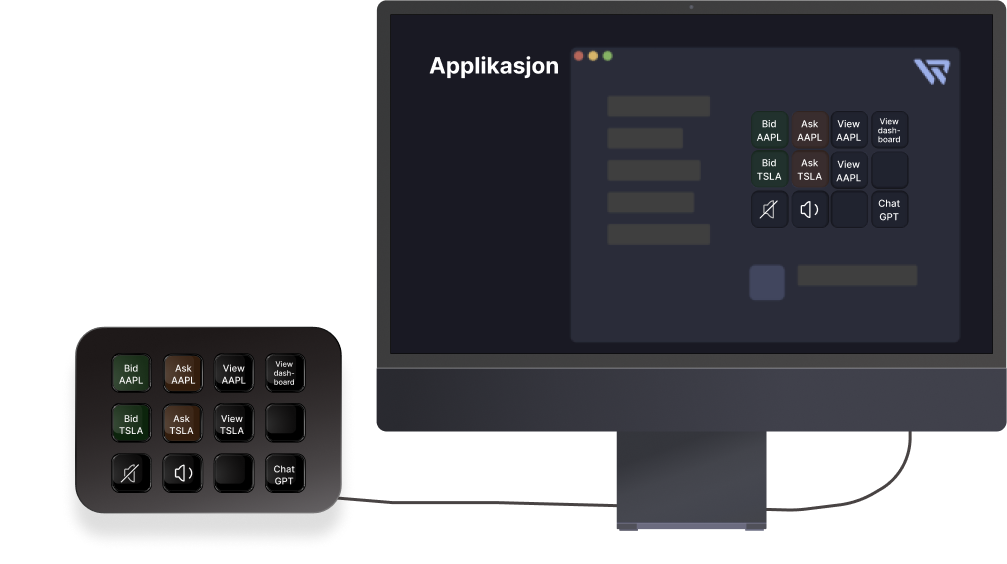
Det er tre hovedkomponenter som skal til for at Waypad skal fungere:
- 1 En datamaskin; der arbeidsflytene skal utføres.
- 2 En enhet; der du får en visuell oversikt over arbeidsflytene du kan utføre og hvor du aktiverer arbeidsflytene fra.
- 3 Installasjon av Waypad-applikasjonen på datamaskinen; bindeleddet mellom datamaskinen og enheten. Applikasjonen er også der arbeidsflyter og profiler kan endres.
Etter installasjon av applikasjonen på datamaskin og oppsett av arbeidsflyter, er systemet klart for bruk. Ved aktivering av arbeidsflyt på enheten vil et signal sendes til applikasjonen som deretter utfører arbeidsflyten på datamaskinen.
Profiler
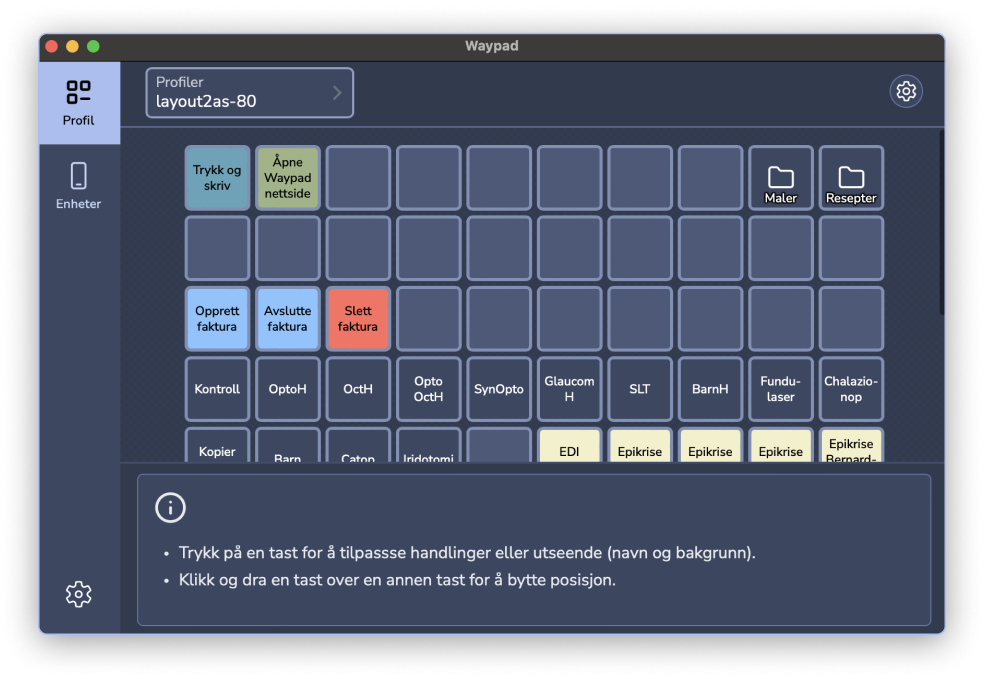
En profil er oversikten over de tilgjengelige arbeidsflytene dine. Tilpass utseendet til profilen og arbeidsflytene; sett navn, farger og logoer slik at arbeidsflytene ser ut akkurat slik du vil ha dem. Organiser arbeidsflytene ved å plassere dem gruppevis eller bruk mapper for å få plass til enda flere arbeidsflyter og grupperinger. Etter tilpasning vil du se at enheten speiler den nye profilen din.
Enheter
Det finnes flere støttede enheter; Elgato streamdeck og mobil enhet (både android og iOS). På din utvalgte enhet får du en visuell oversikt av profilen din og mulighet til å utføre arbeidsflytene som vises. Du trenger derfor ikke å huske arbeidsflytene som du har tilgjengelig. Enheten din blir automatisk oppdatert slik at de nyeste oppdateringene på profilene dine vises.
Arbeidsflyter
En arbeidsflyt representerer en spesifikk prosess i din hverdag. Det kan være alt fra å skrive en spesifikk tekst, åpne en nettside, utføre en forhåndsdefinert tastatur-kombinasjon, til å opprette et dokument fra en mal, henvise en pasient, og andre mer komplekse prosesser.
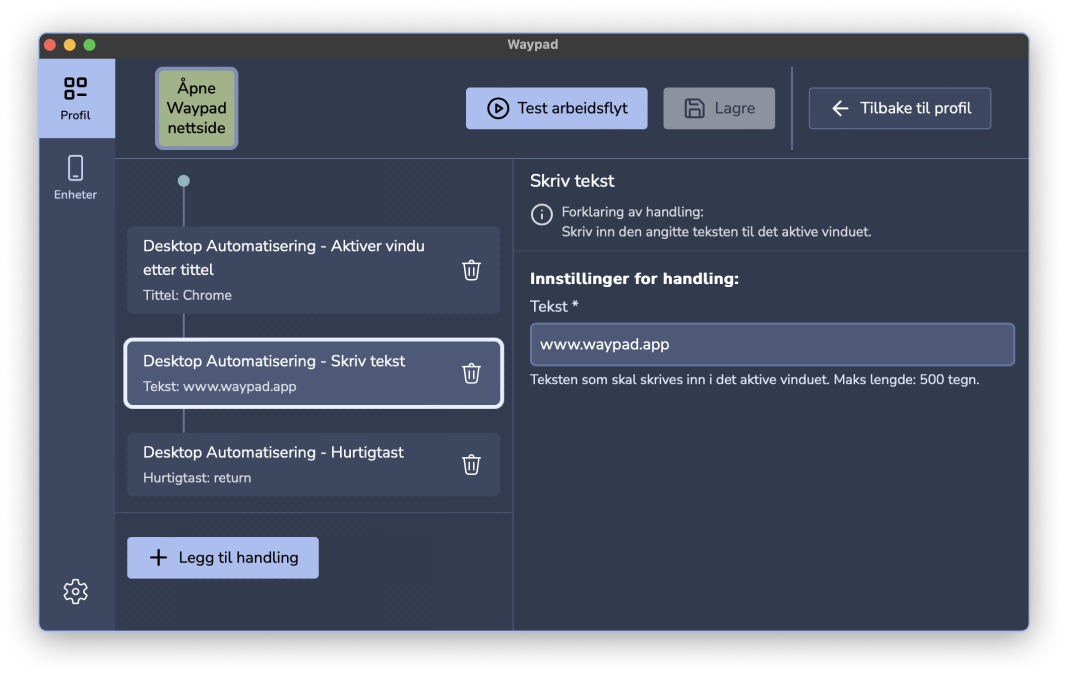
Waypad lar deg opprette dine egne arbeidsflyter ved å kombinere ulike handlinger slik at du får de arbeidsflytene du trenger, ikke alle andres. Etter at du har opprettet en arbeidsflyt kan du sette et særegent preg på den slik at du kjenner den igjen, og plassere den der du vil i profilen din. Fra enheten din kan du deretter aktivere arbeidsflyten.
Handlinger
Byggestenene til en arbeidsflyt kalles handlinger. En handling kan være en veldig liten byggesten som brukes sammen med andre handlinger, eller komplekse nok til å brukes selvstendig i en arbeidsflyt. Ofte vil en handling utføre en veldig spesifikk oppgave slik at den lett kan brukes i mange forskjellige typer arbeidsflyter.
Noen handlinger inkluderer innstillinger som enten er valgfrie eller obligatoriske å fylle ut. I fremtidige versjoner av Waypad vil du kunne bruke resultater fra forrige handlinger i etterfulgte handlingers innstillinger, foreløpig kan du legge inn spesifikke verdier i innstillingene.
Utgiveren av en Plugin; en samling av handlinger, er den som definerer innholdet i de medfølgende handlingene.
Spesielle handlinger
I tillegg til vanlige handlinger finnes det noen få mer spesielle. Disse handlingene er utviklet av Waypad som interne handlinger; handlinger som har tilgang til interne prosesser i Waypad systemet.
Noen eksempler av disse spesielle handlingene er:
- Reload, en handling som kan avbryte arbeidsflyter, og som laster inn alle handlinger og plugins på nytt.
- Mappe, en handling som gir mappe-funksjonalitet slik at du kan organisere og få flere arbeidsflyter på profilen din.
Plugins
En samlinger av handlinger kalles en plugin og er tilleggsprogramvare som kan bli lagt til for å få flere handlinger å velge mellom. Typisk vil en plugin være laget for et spesifikt system eller gruppe funksjon. Merk at det ikke nødvendigvis er slik at alle plugins fungerer på alle plattformer, noen vil eksempelvis bare fungere på Windows eller MacOS. Ta gjerne kontakt med oss dersom det er en type handlinger du savner!